Today Microsoft will release the monthly December patch for Windows 11. Last Patch Tuesday in 2025 will be huge because, according to Windows Centerthere will be no less of them 16 new features included in the update.
These include various design changes to important elements such as the Start menu, specific improvements to existing features, and entirely new features. Let's take a quick look at all the new features.
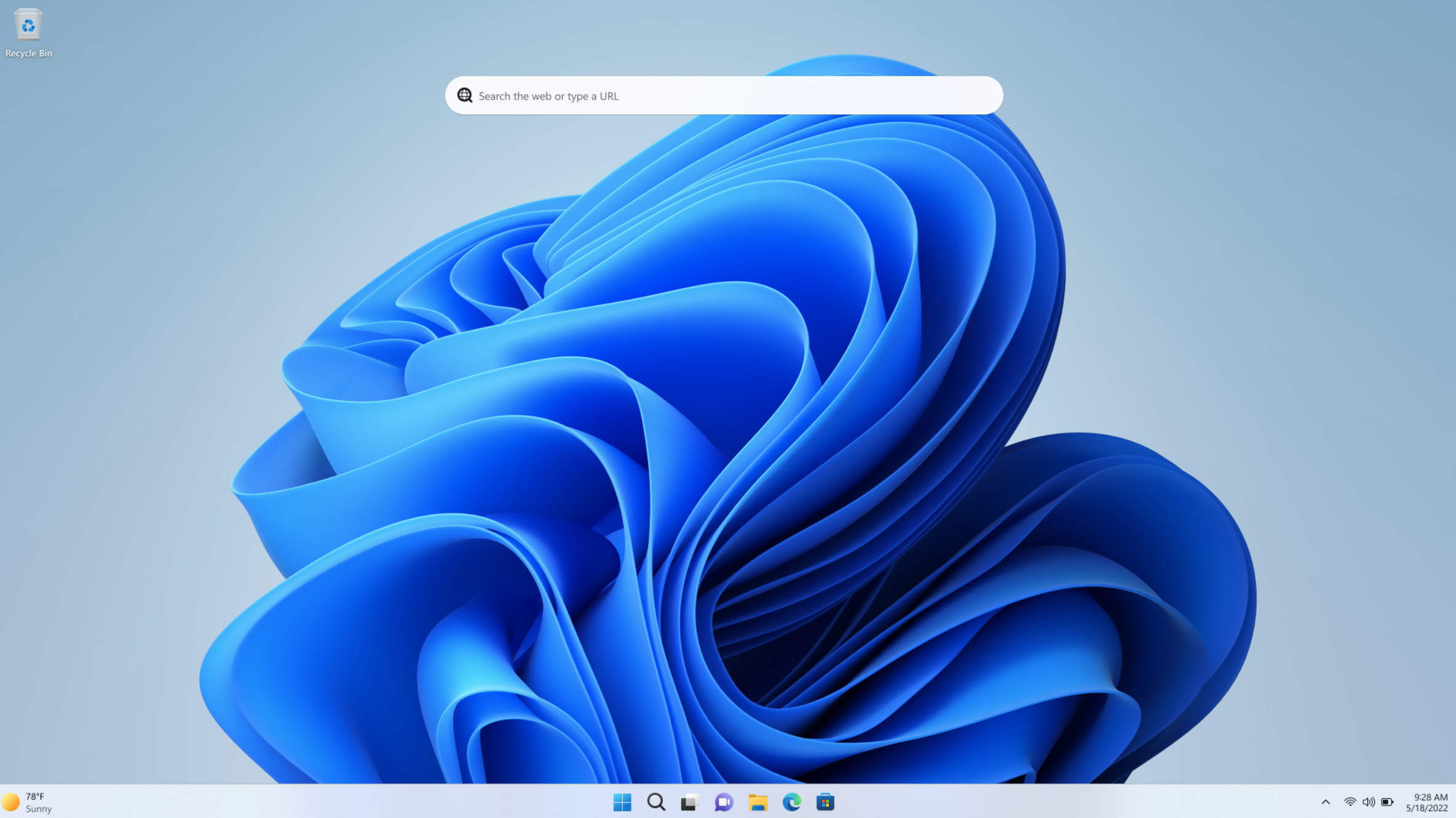
1. Visually improve Windows search
The Windows search box has been visually enhanced to match the height of the new Start menu design. This should eliminate some inconsistencies in the design. However, there is still a problem that The new Start menu takes up most of the screen for many users. It remains to be seen whether Microsoft will address this issue in the future.
2. New “Share with Copilot” feature on the taskbar.
Microsoft's Copilot AI is also coming to Windows 11, this time in the taskbar, where a “Share with Copilot” option will soon appear. You'll then see a thumbnail of the app you're currently using and can quickly start a conversation with the chatbot through Copilot Vision. Additionally, transitioning between apps in the taskbar should be smoother when hovering over them with the mouse pointer.
3. Changes to Windows Spotlight for desktop.
Windows Spotlight, the feature that dynamically changes background images in Windows 11, is also getting improvements. You can right-click on your desktop to quickly change the background. There is also an “Examine Background” option that provides additional information about the background.
4. Ability to disable Drag Tray
Microsoft is introducing an easier way to disable Drag Tray. This typically allows you to select files and drag them to the top of the screen to display options for direct sharing. However, many users were annoyed by this. After the update, you can disable Drag Tray in the section Settings > System > Exchange with the environment .
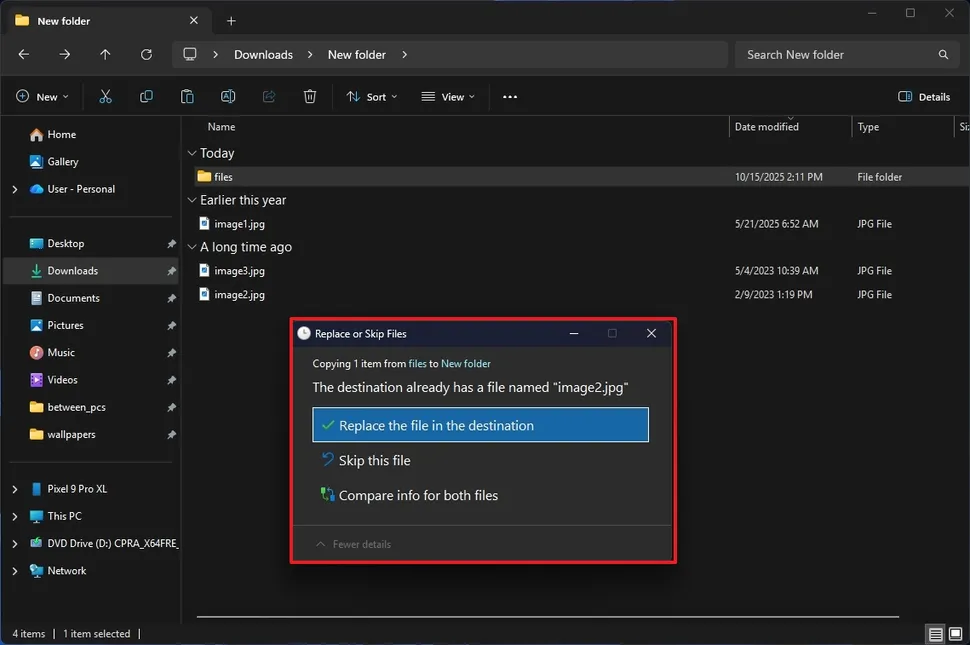
5. Improved dark mode in Explorer.
There's also something for fans of dark modes. Explorer's dark mode has been improved, giving it a more consistent design across dialog boxes such as copy and move. Confirmation dialogs and other views are also being adapted. However, it's still possible that some elements don't match the new design or that File Explorer briefly flashes white on startup. Microsoft will continue to work on this.
Windows Center
6. New device information card in Start settings.
When you're looking for information about your device, you no longer have to click through menus. This is because a new tab appears right on the Settings start page called “Device Information,” which displays information about your PC’s processor, memory, RAM, and graphics card, among other things.
7. Mobile device settings in settings
The Windows 11 Settings app is getting a new configuration menu for mobile devices. Here you can add new devices, access settings for connected mobile devices, or remove a device from your account. It's simple and clear.
8. Information page redesign
Microsoft is also changing the look of the information page in the December update. Now it will only contain a thumbnail of your desktop background with the option to rename your computer. Some sections will also be renamed or have new entries with additional information.
9. Advanced settings for virtual workspaces.
Changes are also made to the “Advanced” section. It contains a new page called “Virtual Workspaces” where you can manage virtualization features such as Windows Sandbox or secure hosts.
10. Bluetooth keyboard and text cursor settings.
Under Settings > Bluetooth & Devices > Keyboard. After the patch you will find new keyboard and text cursor options. For example, keyboard repetition rate, co-pilot key remapping, or accessibility features.
11. New default configuration for quick machine recovery.
Since September, users have been able to use Quick Machine Recovery to quickly recover Windows 11. In December, Microsoft is improving the default setting for this option to make it easier to use.
The new configuration searches for solutions only once and then prevents the user from trying other options to solve the problem. This should prevent the computer from continuing to search for solutions in a sort of continuous loop instead of offering targeted help.
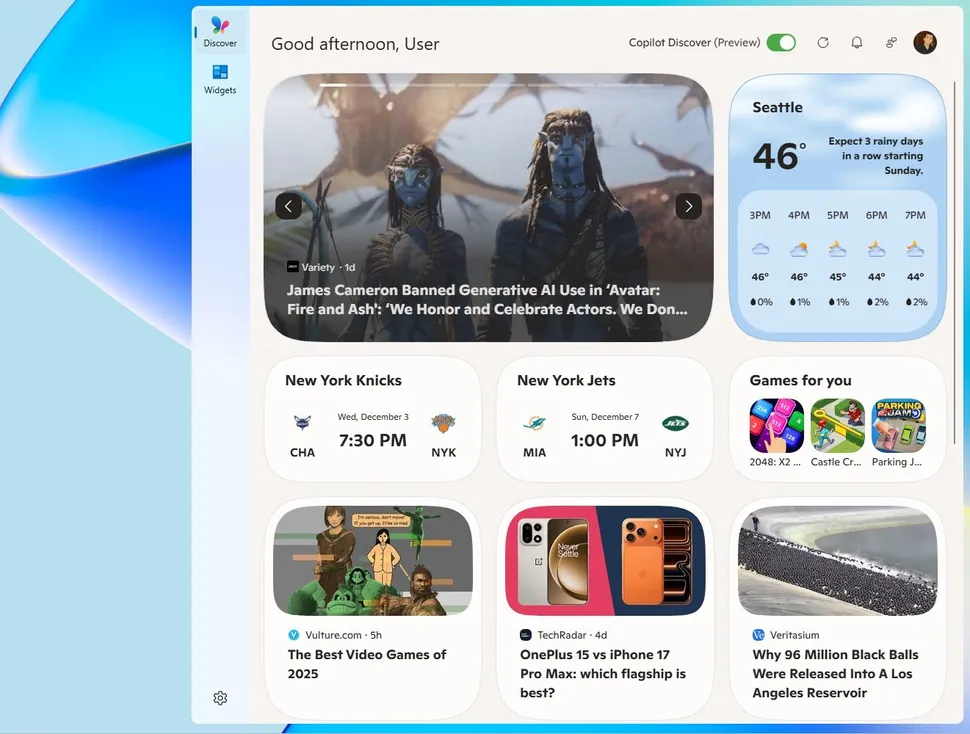
12. Redesign of the widget board.
On Tuesday, Windows 11 will introduce a new widget panel with a more consistent design. The new widgets will be more clearly separated from the Discover board and will no longer use page overlays. Notifications will also appear with the board icon they belong to.
Windows Center
13. Haptic feedback for digital pens
Windows 11 devices with touch functionality receive haptic feedback when using pens in the form of vibrations. They accompany interactions with certain elements, for example, when closing windows.
14. New “Tap to Execute” action menu.
Copilot PC has a new context menu called “Click to Execute.” This menu contains actions such as open, save, copy or share. There's also a new input field that allows you to access Copilot faster.
15. Xbox full screen mode for more portable devices.
new Xbox full screen mode now available on more devices. Until now, users could only use it on Asus ROG ally And Ally Xbut now the full-screen mode of the console design can be used on regular PCs.
Navigation should be much easier and smoother, especially with a controller. The mode also reduces desktop resource consumption and saves up to 2 GB of memory.
You can activate the mode in the section Settings > Games > Full Screen Mode. and then apply the changes by restarting your computer.
16. Windows Studio effects for external cameras
If you have a Copilot PC, you can also extend the AI-powered camera functionality of Windows Studio Effects to additional cameras. This includes USB webcams and built-in rear cameras.
Apart from the new features, the Windows 11 December patch will also bring some bug fixes and closed security holes. As always, we will report on this in a separate article.